
Published 18.09.2026
Claude Code Slash Commands: Essential Commands Cheat Sheet for Developers
A practical Claude Code slash commands cheat sheet for everyday development, including /init, /plan, /model, /context, /compact, /permissions, /diff, /review, /resume, /rewind, and more.
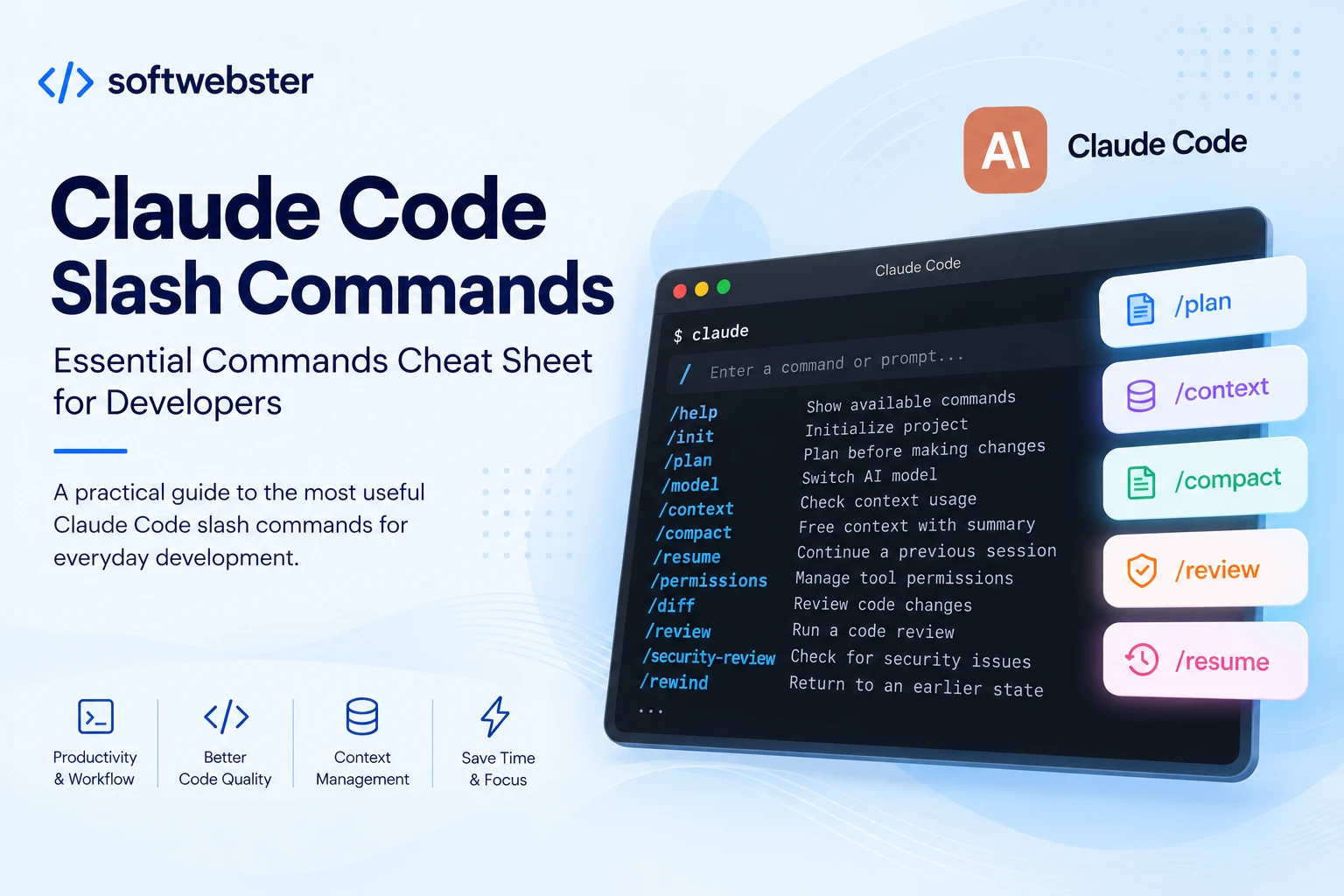
Claude Code is an AI coding tool that works directly in your terminal. It can analyze a codebase, edit files, run commands, work with Git, execute tests, and help with complex development tasks.
In addition to regular prompts, Claude Code provides slash commands — special commands starting with / that let you control your session, context, model, permissions, and development workflow.
To see the commands available in your current environment, simply type:
/Claude Code includes many commands, so this cheat sheet focuses on the ones that are most useful in everyday development.
/help — View available commands
/helpOpens Claude Code help and shows the available commands.
You can also start typing / followed by a few letters to filter the command list.
/init — Initialize a project for Claude Code
/initThis is one of the first commands worth running when you start using Claude Code in a new project.
It analyzes the project and creates a CLAUDE.md file with instructions for Claude.
You can use this file to store project architecture notes, coding conventions, test commands, deployment instructions, and other information Claude should consider while working.
/plan — Plan before changing code
/planSwitches Claude Code into Plan Mode. This is particularly useful before large or potentially risky changes.
Instead of immediately editing files, Claude can first explore the codebase and prepare an implementation plan.
You can also provide the task directly:
/plan refactor checkout validationFor large Magento, Laravel, or other codebases, this is one of the most useful commands because you can review the proposed approach before implementation begins.
/model — Switch the AI model
/modelOpens the model picker and lets you switch models without leaving the current session.
This is useful when a faster model is enough for a simple task, while a difficult refactoring, debugging, or architecture task may benefit from a more capable model.
/effort — Adjust reasoning effort
/effortControls how much reasoning effort Claude applies to a task.
For example:
/effort highHigher effort is not necessary for every small change, but it can be useful for difficult debugging, architecture analysis, and complex refactoring.
/fast — Toggle Fast Mode
/fastToggles Fast Mode when it is available for your account and environment.
You can also explicitly enable or disable it:
/fast on
/fast off
It is useful for short tasks where response speed matters more than maximum depth.
/context — Check context usage
/contextVisualizes what is currently consuming Claude Code's context window.
This becomes especially useful during long sessions after Claude has read many files, executed multiple commands, and accumulated a large conversation history.
For a more detailed view:
/context all/compact — Free context while keeping the task
/compactClaude Code summarizes the conversation so far, freeing space in the context window while preserving the important information needed to continue working.
You can also tell Claude what the summary should focus on:
/compact focus on the checkout implementation and remaining testsThis is particularly useful during long development sessions when you want to continue the same task without starting over.
/clear — Start a fresh conversation
/clearStarts a new conversation with an empty context.
Unlike /compact, it does not summarize the previous conversation for continued work. You are effectively starting a new session.
The previous conversation is preserved and can later be reopened with /resume.
/resume — Continue a previous session
/resumeOpens the session picker and lets you return to a previous Claude Code conversation.
This is extremely useful when a development task spans several days.
Instead of explaining the task again, you can resume the previous session and continue from where you stopped.
/rename — Give a session a useful name
/rename checkout-refactoringRenames the current session.
If you regularly use /resume, meaningful session names make it much easier to find the right conversation later.
/memory — Manage project memory
/memoryLets you work with CLAUDE.md files, auto memory, and other information Claude uses as persistent project context.
It is useful for storing project rules that you do not want to repeat in every new session.
/permissions — Manage permissions
/permissionsOpens Claude Code's permission management interface.
You can manage allow, ask, and deny rules for tools and commands.
For example, you can pre-approve safe commands that are frequently used in a particular project.
/diff — Review code changes
/diffShows changes in the working tree, including edits Claude has made during the current task.
It is a good command to run before committing changes, especially when Claude has modified several files.
/review — Run a code review
/reviewReviews your code changes for potential problems. It is an alias for /code-review.
You can specify the review effort:
/review highYou can also ask Claude to apply the findings:
/review high --fixThe command can review the current diff, a branch, a path, or a Pull Request.
/security-review — Check changes for security issues
/security-reviewAnalyzes changes on the current branch for potential security vulnerabilities, including injection risks, authorization problems, and data exposure.
It is especially useful before merging changes related to authentication, checkout, APIs, forms, or user data.
/rewind — Return to an earlier state
/rewindLets you rewind the conversation, code, or both to an earlier checkpoint.
This is useful when an experiment goes in the wrong direction and you want to return to the state before those changes.
/doctor — Diagnose Claude Code
/doctorRuns a checkup of your Claude Code installation and configuration.
It can identify problems with the installation, PATH, settings, hooks, skills, MCP servers, and other parts of the environment.
If Claude Code starts behaving unexpectedly or something stops working after an update, this is a good command to try first.
/mcp — Manage MCP servers
/mcpOpens the interface for managing MCP server connections and authentication.
MCP can extend Claude Code by connecting it to external tools and data sources.
/ide — Manage IDE integrations
/ideManages IDE integrations and shows their current status.
It is useful when you use Claude Code together with an editor and need to check whether the integration is working correctly.
/tasks — View background tasks
/tasksShows background tasks and subagents running in the current session.
This is useful when Claude is running tests, long shell commands, or multiple agents in parallel.
/btw — Ask a side question without changing the main context
/btw What does this service class do?Lets you ask a quick side question about the current session without adding the question and answer to the main conversation history.
It is handy when you need a quick explanation during a larger task without adding unnecessary context to the main workflow.
/usage — Check Claude Code usage
/usageShows session cost, usage statistics, and available plan limits depending on your account.
You can also use the aliases:
/cost
/stats
/export — Export the conversation
/exportExports the current conversation as plain text.
You can also provide a filename directly:
/export session.txt/exit — Exit Claude Code
/exitExits the current CLI session.
You can also use:
/quitClaude Code commands worth learning first
If you are new to Claude Code, you do not need to memorize dozens of commands. Start with this set:
/init
/plan
/model
/context
/compact
/clear
/resume
/permissions
/diff
/review
/rewind
/doctor
/usage
/help
A practical daily workflow
Slash commands work best when combined with normal prompts. For example, a typical development task could start by asking Claude to investigate the problem and create a plan:
/plan implement a new checkout validationAfter the implementation, review all changes:
/diffThen run a code review:
/review highIf the session becomes too large:
/contextand, if necessary:
/compact focus on the implemented changes and remaining tasksThe next day, continue where you left off:
/resumeConclusion
Slash commands turn Claude Code from a simple AI conversation in the terminal into a much more practical development environment.
Commands such as /plan, /context, /compact, /resume, /permissions, /diff, /review, and /rewind are particularly useful because they give you more control over both the code and the AI agent's workflow.
Claude Code evolves quickly, so the available command set can change over time. You can always check the commands available in your current version by typing / or running /help.