
Published 06.06.2026
Vibe Coding: How I Used Codex to Build a Local WEBP Image Converter
A practical vibe coding example: building a local PHP tool for batch image optimization and WEBP conversion.
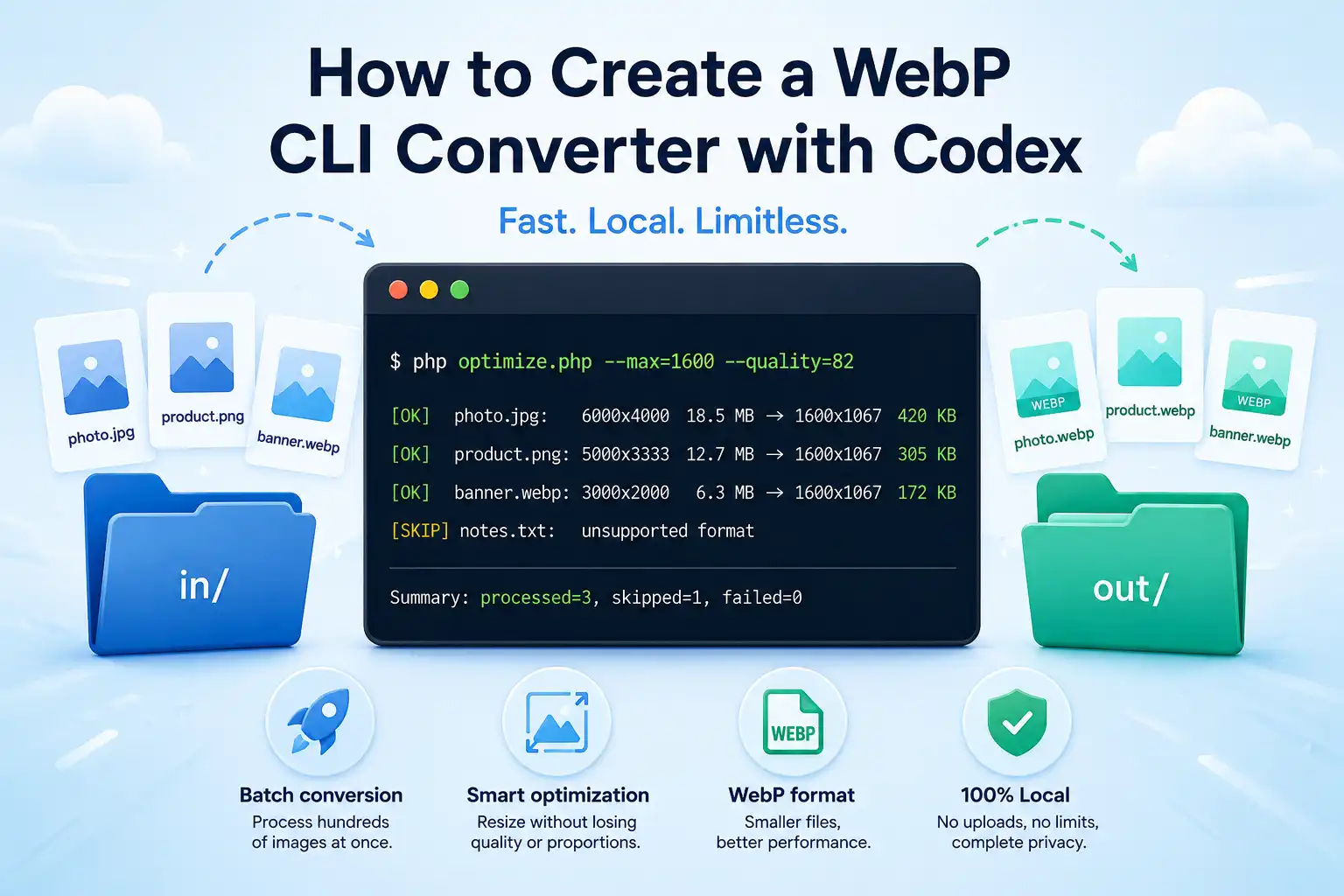
When you work with websites, blogs, or online stores, you quickly run into one common problem: images take up too much space.
A photo from a smartphone or a professional camera can easily weigh 10, 15, or even 25 megabytes. For a personal archive, that is fine. For a website, it is a different story. Large files slow down page loading, hurt Google PageSpeed metrics, create extra load on the server, and make users wait longer than they should.
This problem becomes especially noticeable in online stores. If a blog article needs only a few images, a product catalog can require hundreds or even thousands of supplier photos. Processing that manually, or uploading every image to an online converter, gets annoying very quickly.
Of course, there are many online services for converting JPG to WEBP: CloudConvert, Convertio, ToWebP, and dozens of others. They work well for one-time use. But when you need to process large batches of images regularly, the usual limitations start to get in the way:
- limits on the number of files;
- ads;
- processing queues;
- file size restrictions;
- required registration;
- uploading files to third-party servers.
That is why I decided to build my own local tool. Codex helped me with that.
The finished project is available on GitHub: image-to-webp-converter.
In this article, I want to show not only the final result, but also the process itself: from the idea and the prompt to a fully working console tool. This is exactly the kind of small practical project I put into the vibe coding category: instead of spending hours writing typical code manually, you describe the task, and AI helps you quickly get the first working version of the solution.
The Initial Idea
I did not need a complex web application, admin panel, or SaaS product. I wanted something as direct as possible:
- there is an
in/folder for source images; - there is an
out/folder for results; - the script resizes large images to a reasonable size;
- the script converts everything to WEBP;
- quality and maximum size can be configured;
- everything works locally, without ads and without limits.
The initial prompt was roughly this:
Create a console PHP tool for preparing images for a website.
It should read JPG, PNG, and WEBP files from the in/ folder, resize them without changing proportions,
convert them to WEBP, and save the result to the out/ folder.
Add parameters for maximum size, WEBP quality, and overwriting files.
That was enough to set the direction. After that, the important part was not just generating code, but checking whether the solution was actually convenient in real use.
Choosing the Technology
I chose PHP because it is a simple and familiar tool for many people who work with websites, WordPress, Magento, or small web projects.
The dependencies are minimal:
{
  "require": {
    "php": ">=8.1",
    "ext-gd": "*",
    "intervention/image": "^2.7"
  }
}
The main library here is intervention/image. It provides a convenient API for reading, resizing, and encoding images. The tool uses PHP GD, so it is important that GD has WEBP support.
You can check that with:
php -r 'var_export(gd_info()["WebP Support"] ?? false);'If the command returns true, you can proceed.
Project Structure
The final structure is very simple:
image-optimizer/
├── composer.json
├── composer.lock
├── optimize.php
├── README.md
├── in/
├── out/
└── vendor/
in/ is the folder for original images.
out/ is the folder for ready WEBP files.
optimize.php is the main console script.
README.md is a short documentation file with launch examples.
Why Codex
This tool could have been written manually in a few hours. But the goal was to test how effective the vibe coding approach can be on a real task.
Codex helped quickly:
- shape the project structure;
- prepare
composer.json; - implement CLI parameters;
- add error checks;
- create the README;
- generate the first working version of the tool.
After that, I only had to test the result and make a few small adjustments.
How the Script Works
The script is launched from the console:
php optimize.phpBy default, it uses the following settings:
- input folder:
in/; - output folder:
out/; - result format:
WEBP; - maximum longer side:
1600px; - WEBP quality:
82.
The settings can be changed:
php optimize.php --in=in --out=out --max=1600 --quality=82To overwrite existing files:
php optimize.php --overwriteFor large hero images:
php optimize.php --max=1920 --quality=85 --overwriteFor most images inside articles:
php optimize.php --max=1024Key Logic
First, Composer is loaded and the GD driver is configured:
require __DIR__ . '/vendor/autoload.php';

Image::configure(['driver' => 'gd']);
Then the CLI parameters are read:
$options = getopt('', [
    'in:',
    'out:',
    'max:',
    'quality:',
    'overwrite',
    'help',
]);
The main processing block looks like this:
$image = Image::make($inputPath)->orientate();

$image->resize($maxSize, $maxSize, static function ($constraint): void {
    $constraint->aspectRatio();
    $constraint->upsize();
});

$image->encode('webp', $quality)->save($outputPath);
orientate() respects the photo's EXIF orientation.
aspectRatio() preserves proportions.
upsize() prevents small images from being enlarged.
After that, the file is encoded as WEBP and saved to the output folder.
What Happens to Files
The script goes through all files in the in/ folder and processes only supported formats:
- jpg;
- jpeg;
- png;
- webp.
Everything else is skipped.
If the result already exists, the file is skipped as well. To overwrite files, you need to explicitly add the --overwrite parameter.
The console shows detailed information:
[ok] photo.jpg: 6000x4000 18.5 MB -> 1600x1067 420 KB
[skip] notes.txt: unsupported format
[skip] photo.webp: output already exists

Summary: processed=1, skipped=2, failed=0
Results on Real Photos
I tested the tool both on blog article photos and on large product images for an online store.
The original files weighed from 12 MB to 27 MB each. After conversion to WEBP with a maximum size of 1600px, the results were roughly between 172 KB and 752 KB.
In most cases, the savings were over 95%.
For a blog, this means faster page loading and better PageSpeed metrics.
For online stores, the benefit is even bigger: less server load, faster product and category pages, and a better user experience on mobile devices.
The effect becomes especially noticeable when you are dealing with hundreds or thousands of product photos.
Why Not an Online Service
Online converters are still useful. If you need to quickly convert one file, they do the job well.
But for regular work with a blog or an online store, a local tool is more convenient:
- there are no limits;
- there are no ads;
- there is no need to wait in a queue;
- files stay local;
- the process can be repeated an unlimited number of times;
- the tool is easy to integrate into your own workflow.
What Can Be Improved Next
The current version already covers the basic need: optimizing large batches of images for a website.
In the future, it would be useful to add:
- recursive processing of nested folders;
- preserving directory structure;
- a dry run mode;
- calculation of total saved space;
- AVIF support;
- a simple drag-and-drop interface on top of the CLI.
Conclusion
This small image optimizer became a good example of how modern AI agents can help create useful tools for specific tasks.
The initial problem was very practical: regularly processing large amounts of images for a blog and online stores without using third-party services.
As a result, I got a simple local tool that:
- works without internet access;
- has no limits;
- has no ads;
- allows processing large batches of photos;
- is easy to integrate into your own workflow.
Not every task needs a large application or complex architecture. Sometimes the best solution is one small script that does its job well.
The source code is available here: https://github.com/softwebster/image-to-webp-converter.
In my case, it is enough to run:
php optimize.php --max=1600 --quality=82and after a few seconds get ready WEBP files for a blog or an online store.